


In recent years, QR codes have become increasingly popular as an efficient, versatile, and user-friendly way to access information, make payments, and connect with digital content. The iPhone QR code scan feature is an indispensable tool that enables users to seamlessly interact with these codes. This article will dive into the world of QR code scanning with your iPhone, exploring its numerous applications, tips, and tricks. We’ll also cover frequently asked questions and provide a step-by-step guide on how to make the most of this powerful feature.
Harnessing Your iPhone’s QR Code Scanning Capabilities
The Basics: How to Perform an iPhone QR Code Scan
Scanning a QR code with your iPhone is incredibly simple. Here’s how to do it:
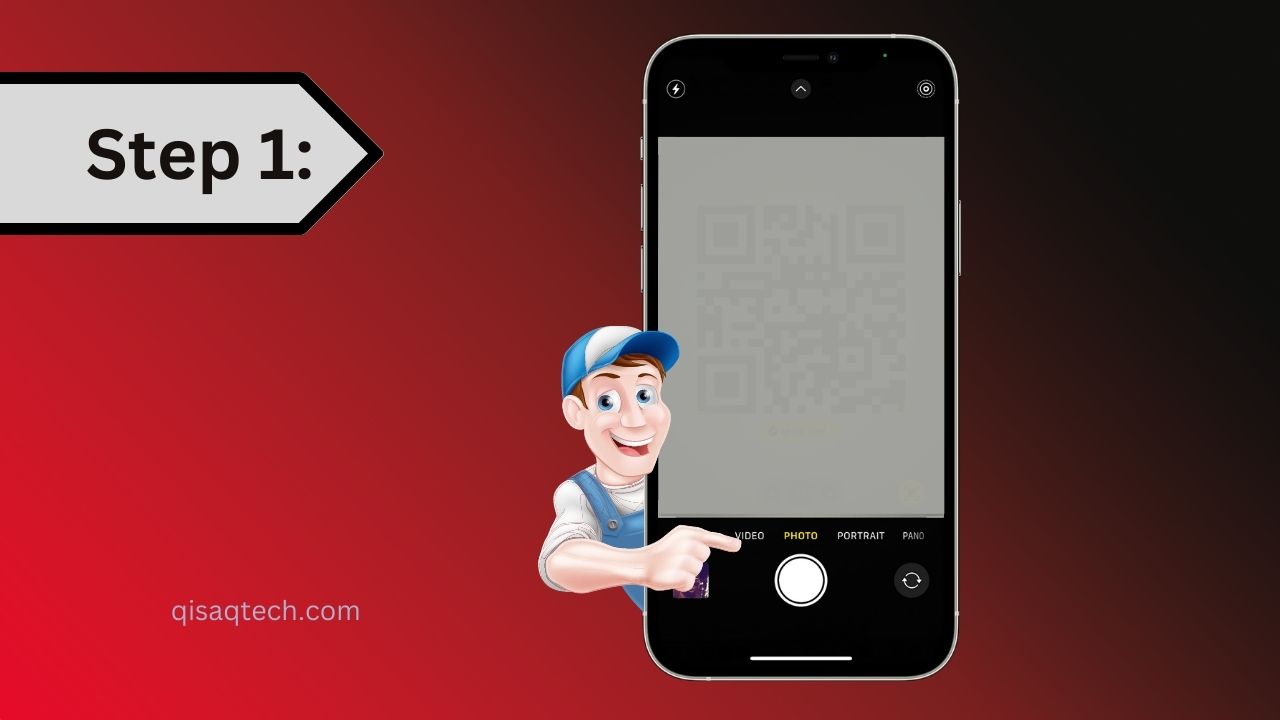
- Step 1:
Unlock your iPhone and open the Camera app.
- Step 2:
Position the QR code within the camera’s viewfinder, ensuring that it is clearly visible and centered.

- Step 3:
The iPhone will automatically recognize the QR code and display a notification at the top of the screen.

- Step 4:
Tap the notification to access the linked content, such as a website, app, or payment portal.

Advanced Scanning Options: Third-Party Apps and Features
While the built-in iPhone QR code scan feature is easy to use, there are third-party apps that provide additional functionality. Some popular options include:
- QR Code Reader & QR Scanner: This free app offers extra features like a history log, customizable settings, and the ability to scan barcodes in addition to QR codes.
- QRbot: Another free option, QRbot not only scans codes but also creates them. It supports various types of content, such as contact information, Wi-Fi networks, and location data.
Creating and Sharing QR Codes with Your iPhone
Creating a QR code on your iPhone is straightforward, thanks to a variety of apps and online tools. Some popular options include:
- QR Code Generator: This free web-based tool allows you to create custom QR codes for different types of content, such as URLs, text, and email addresses.
- Qrafter: A comprehensive QR code app for iOS devices, Qrafter enables you to create, scan, and share QR codes with ease.
To share a QR code, simply save the generated image to your iPhone’s photo library and send it via text, email, or social media.
Expanding Your iPhone QR Code Scan Horizons
Innovative Uses for QR Codes on Your iPhone
QR codes have a wide range of uses that go beyond simply opening a website or making a payment. Here are some creative examples:
- Event tickets: QR codes can be used as digital tickets for concerts, conferences, or sporting events.
- Business cards: A QR code on a business card can provide instant access to contact information, social media profiles, or a personal website.
- Personalized gifts: Create a custom QR code that links to a video message, photo album, or playlist for a unique, memorable gift.
- Educational resources: Teachers can use QR codes to provide students with quick access to supplementary materials, quizzes, or assignments.
Tips and Tricks to Enhance Your iPhone QR Code Scan Experience
To ensure a smooth and efficient iPhone QR code scan experience, follow these tips:
- Make sure the QR code is well-lit and clearly visible, free from glare or obstructions.
- If you’re having trouble scanning a code, try moving your iPhone closer or further away to improve focus.
- Keep your iPhone’s software updated to ensure optimal QR code scanning performance.
- Explore third-party apps for enhanced functionality and customization options.
FAQ’s
Yes, the built-in QR code scanning feature is available on iPhone models as far back as the iPhone 5s, as long as you have iOS 11 or later installed.
Generally, scanning QR codes is safe. However, always exercise caution when scanning codes from unknown sources, as they could potentially link to malicious websites or content. Stick to reputable sources and avoid scanning suspicious codes.
While scanning a QR code does not require an internet connection, accessing the linked content (e.g., websites or online services) may require an active connection.
You can enable or disable the QR code scanning feature on your iPhone by navigating to Settings > Camera > Scan QR Codes. Toggle the switch on or off as desired.
In Summary
The iPhone QR code scan feature is an incredibly powerful and versatile tool that allows users to easily access information, make payments, and interact with digital content. By understanding the basics of scanning, creating, and sharing QR codes, as well as exploring advanced scanning options and innovative applications, you can unlock the full potential of this feature on your iPhone. With this comprehensive guide, you’ll be well-equipped to make the most of the iPhone QR code scan capabilities and stay ahead of the ever-evolving digital landscape.


